

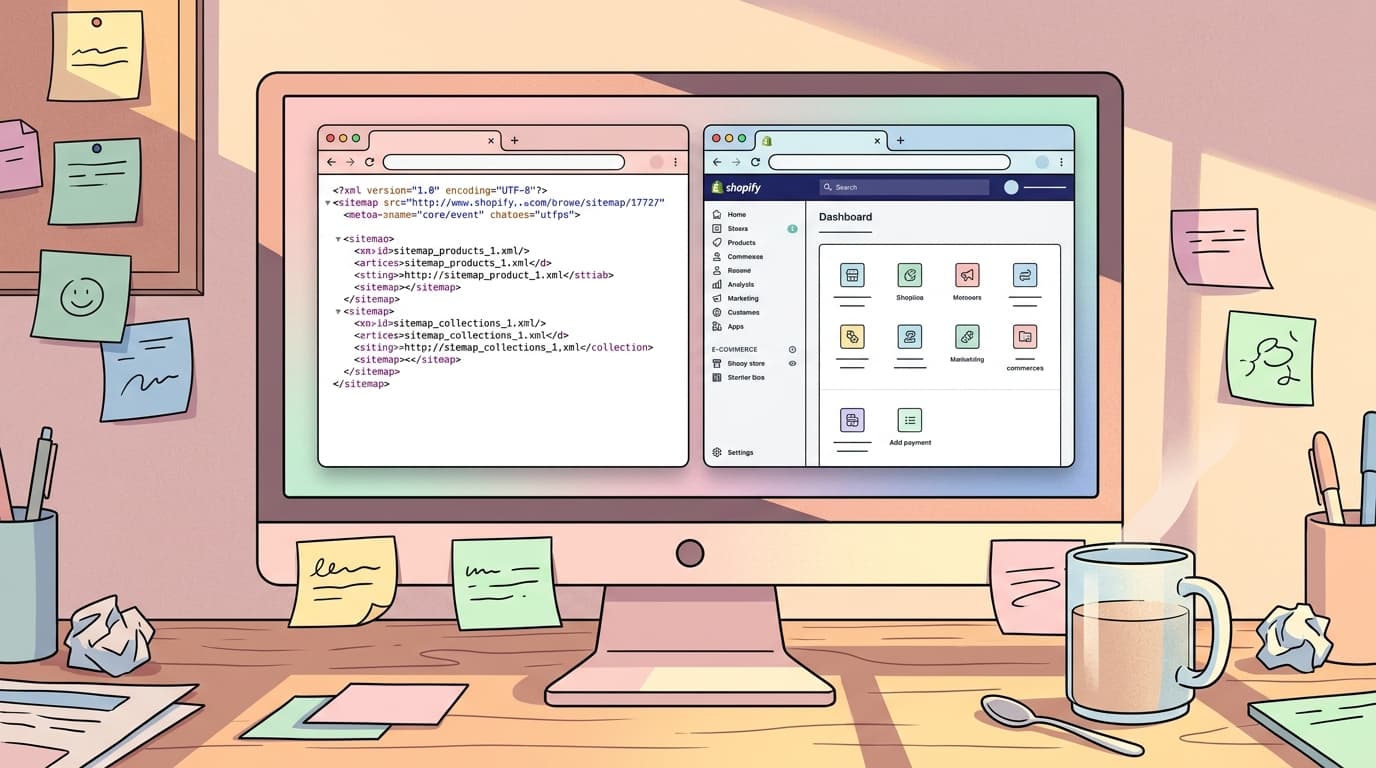
A Shopify XML sitemap is an automatically generated file that lists all of your store's publicly accessible pages, products, collections, images, and blog posts. It helps search engines like Google understand your site's structure and discover all of your content efficiently. Shopify creates and updates this file for you; your only job is to submit it to search engines.
Your Shopify Sitemap Already Exists
The conversation around Shopify sitemaps is often overcomplicated. There's no need to install an app, hire a developer, or edit any code to create one. Shopify handles it for you. It is a core feature of the platform.
Your sitemap lives at a predictable URL: `yourdomain.com/sitemap.xml`. This file is not a single list of all your URLs. Instead, it’s a sitemap index file - a table of contents that points to other, more specific sitemaps. When you visit the main URL, you'll see links to child sitemaps like:
sitemap_products_1.xml(for your products)sitemap_collections_1.xml(for your collections)sitemap_pages_1.xml(for your pages)sitemap_blogs_1.xml(for your blog posts)
Shopify automatically updates these files. Add a new product, and it appears in the product sitemap within moments. Unpublish a page, and it is removed. This dynamic process means the map search engines use to crawl your site is always current. You do not need to manually regenerate it.
The Honest Tradeoff: Automation Over Control
Most of the confusion comes from merchants who have previously worked with other platforms, like WordPress. The mistake to avoid: assuming you have the same level of granular control. You do not.
On WordPress, a plugin like Yoast or Rank Math gives you a control panel to manually include or exclude specific pages, post types, or archives from your sitemap. Shopify offers no such interface. This isn't a bug; it's a deliberate platform choice that prioritizes stability and simplicity for the majority of users.
Here’s what you cannot do with a native Shopify sitemap:
- Manually edit the file: The
sitemap.xmlfile is generated on the fly. You cannot access it to delete a line or add a custom URL. - Change priority or frequency tags: Shopify includes
<lastmod>tags, but not<priority>or<changefreq>. This is fine. Google has stated for years that they largely ignore these tags anyway, as they are often misused and unreliable signals. - Exclude a single live page directly: There is no checkbox in the Shopify admin that says "Exclude this page from the sitemap."
The reality is simple. On WordPress, the sitemap is a plugin-controlled document; on Shopify, it is a locked-down platform asset. Wasting time looking for settings that don't exist is a common failure mode. The actual method of control is different.
Control the Source, Not the Sitemap
If you can't edit the sitemap file, how do you keep a page out of it? By controlling the page itself. The sitemap is just a reflection of your store's public, indexable content. To change the reflection, you change the source.
Here are the correct ways to control what appears in your sitemap:
- Unpublish the page: If a page, product, or collection shouldn't be live, hide it. Taking it offline removes it from your storefront and from the sitemap. This is the cleanest method.
- Password-protect the page: Placing a page behind a password wall removes it from the public-facing sitemap.
- Add a 'noindex' tag: This is the proper technical SEO control. By adding a `meta name="robots" content="noindex"` tag to a page, you are telling search engines not to include it in their search results. Shopify will then automatically remove that URL from the XML sitemap. You can add this tag by editing your theme's `theme.liquid` file or, more easily, by using a reputable SEO app.
The guiding principle is this: don't try to manage the sitemap. Manage your content's indexability, and the sitemap will follow suit.
Submitting to Google Is the Only Manual Step Required
Knowing your sitemap exists is half the battle. The other half is telling Google where to find it. This is a one-time setup process that ensures Google can efficiently find and crawl your site.
Here's how to do it.
- Log in to Google Search Console: You must have a GSC account for your domain. If you don't, setting one up is the first step.
- Select your property: Choose the correct domain from the dropdown menu in the top left.
- Navigate to 'Sitemaps': In the left-hand navigation menu, under the "Indexing" section, click "Sitemaps."
- Add your sitemap URL: In the "Add a new sitemap" box, type `sitemap.xml` and click the "Submit" button. You only need to submit the root index file, not each individual child sitemap.
That's it. Google will show the status as "Success" once it has processed the file. It will then periodically re-crawl the sitemap URL to find new and updated content. You do not need to resubmit it every time you add a new product.
The Final Step: Check the Coverage Report
Submitting the sitemap is not the goal. It is the beginning of a process. The real work happens in Google Search Console's "Coverage" report (now part of the "Pages" report).
This report is where Google tells you what it did with the URLs it found in your sitemap. It will show which pages are indexed, which are excluded, and why. The sitemap is the map you give to Google; the Coverage report is the travel log Google gives back to you. Monitoring this report for errors or unexpected exclusions is the essential follow-up step. This is where a sitemap audit hands off into actual technical SEO monitoring.
Shopify XML Sitemap: Everything You Need to Know for SEO FAQ
How do I find my Shopify sitemap URL?
Your Shopify sitemap is located at the root of your domain. Simply add /sitemap.xml to the end of your primary domain name (e.g., `www.yourstore.com/sitemap.xml`).
How do I remove a page from my Shopify sitemap?
You cannot edit the sitemap file directly. To remove a page, you must either unpublish it, password-protect it, or add a "noindex" meta tag to the page's HTML. Adding a `noindex` tag is the standard SEO practice for keeping a live page out of search engine results and, consequently, the sitemap.
Why isn't a new product showing up in my sitemap?
Your sitemap should update almost instantly. If a newly published product or page isn't appearing, first check that it is active and available on your public storefront. If it is, force-refresh the `sitemap.xml` page in your browser (Ctrl+F5 or Cmd+Shift+R) to ensure you aren't seeing a cached version.
Do I need a special app for my Shopify sitemap?
No. You do not need an app to create or manage your basic XML sitemap. Shopify handles this automatically. SEO apps can be useful for adding `noindex` tags to specific pages, which indirectly controls the sitemap's contents, but they do not replace Shopify's native sitemap generation.