

Connecting your Shopify store to Google Search Console is the first step toward understanding how Google sees your site. It is not, however, a magic button for SEO. The web is littered with apps and quick-fix guides that promise instant setup and often lead to fragmented data or broken tracking. They are a trap.
The correct process is simpler and far more reliable. It requires one-time access to your domain's DNS records to create a direct, unbreakable link between your store and Google's index. This guide provides that process, step-by-step.
Domain Property Verification Is The Only Method to Use
Google Search Console offers two ways to verify ownership of a website: a Domain property or a URL Prefix property. For a Shopify store - or any serious website - this isn't actually a choice. You must use the Domain property.
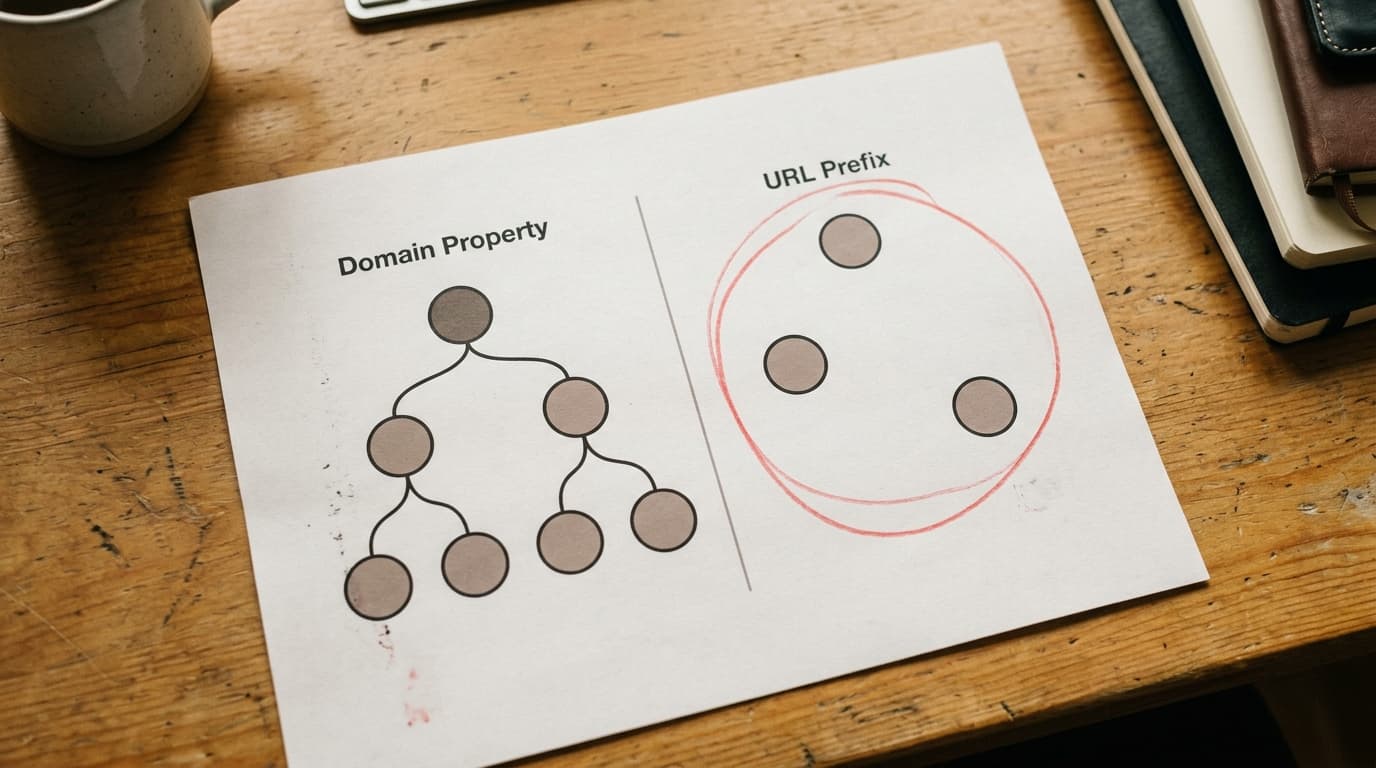
A Domain property captures all data for an entire domain, including all subdomains (like www., shop.) and protocols (http://, https://). A URL Prefix property only tracks the exact address you enter. The Domain property sees the whole picture; the URL Prefix property sees only a slice.
Failure Mode: The URL Prefix Trap Creates Data Silos
The most common setup mistake is creating multiple URL Prefix properties. A store owner might create one for http://yourstore.com, another for https://yourstore.com, and a third for https://www.yourstore.com. Google sees these as three separate websites. Your traffic data, indexing information, and error reports get split across them, making a complete analysis impossible.
The Domain property solves this by design. It treats all versions of your domain as a single entity, which is how Google sees it anyway. It is the canonical source of truth.
How to Verify Your Shopify Store via DNS Record: Step-by-Step
This process uses a DNS TXT record to prove you own your domain. It feels technical, but it’s a simple copy-and-paste operation. The honest tradeoff is five minutes of focused work for a permanent, stable verification that theme updates or Shopify settings can't accidentally break.
Step 1: Add a New Property in Google Search Console
Go to Google Search Console and log in with your Google account. In the top-left dropdown, click "Add property."
Step 2: Select 'Domain' and Enter Your Root Domain
You will see the two property type options. Select the "Domain" box on the left. Enter your root domain name without any prefixes. For example, if your store is https://www.mystore.com, you should enter just mystore.com. Click "Continue."
Step 3: Copy the TXT Verification Record
A new window will appear with verification instructions. The only thing you need from this screen is the string of text labeled "TXT record." Click the "Copy" button next to it. Keep this tab open.
Step 4: Navigate to Your Domain Registrar's DNS Settings
Here is where most people get tripped up. You do not do this step in Shopify. You must log in to the company where you bought your domain name - your domain registrar. This might be GoDaddy, Namecheap, Google Domains, Bluehost, or another provider.
Once logged in, find the section for managing your domains and look for an option called "DNS Management," "Manage DNS," or "Advanced DNS Settings."
Step 5: Add a New TXT Record
In your DNS management panel, you will see a list of existing records (like A, CNAME, MX). Look for a button to "Add" a new record.
Configure the new record with these settings:
- Type: Select "TXT" from the dropdown menu.
- Host/Name: Enter "@". Some registrars may want you to leave this blank or enter your domain name (
mystore.com). The "@" symbol is standard for the root domain. - Value/Content: Paste the TXT record you copied from Google Search Console in Step 3.
- TTL (Time to Live): Leave this at the default setting, which is usually 1 hour or "Automatic."
Save the new record.
Step 6: Click 'Verify' in Google Search Console
Go back to the Google Search Console tab you left open and click the "Verify" button. It can take anywhere from a few minutes to a few hours for DNS changes to propagate across the internet. If it doesn't work immediately, don't panic. Wait an hour and try again. Once successful, you will see a "Ownership verified" message.
What To Do Immediately After Verification
Setup is not the end goal. It's the starting line. Once verified, there are two critical next actions.
1. Submit Your Sitemap
A sitemap is a file that lists all the important pages on your store, making it easier for Google to discover and crawl them. Shopify automatically generates this for you.
- In your new Search Console property, go to "Sitemaps" in the left-hand navigation.
- Under "Add a new sitemap," type
sitemap.xml. - Click "Submit."
Google will now use this file as a guide for crawling your products, collections, pages, and blog posts.
2. Check for Manual Actions and Security Issues
Even for a new site, this is a crucial habit. In the left-hand menu, click on "Security & Manual Actions." Both should report "No issues detected." If they don't, you have a serious problem that needs to be addressed immediately. This check provides your baseline for site health.
The Concrete Handoff
Verification is the handshake. Submitting your sitemap is the first conversation. The real work begins now, using GSC's data to monitor indexing in the Pages report, diagnose technical issues, and find keyword opportunities in the Performance report. This setup isn't the end of a task; it is the opening of your most important diagnostic tool. The next step is to let data collect for a week, then dive into the Performance report to see the queries your store is *actually* showing up for.
How to Set Up Google Search Console for Your Shopify Store FAQ
Can I verify Google Search Console by adding a code to my Shopify theme?
You can, using the HTML tag verification method. We strongly advise against it. This method places a meta tag in your theme.liquid file. When you update or change your theme, that tag is often deleted, which will un-verify your property and cause you to lose tracking. The DNS method is permanent and theme-independent.
Shopify has a spot for Google verification codes. Should I use that?
No. That integration is designed for the older HTML tag method, which as noted above, is fragile. It also creates a URL Prefix property, not the recommended Domain property. Ignore this setting in Shopify and use the DNS method with your domain registrar directly.
How long does it take for data to appear in Search Console?
After you verify your property and submit a sitemap, it can take a few days for Google to process the data and begin populating your reports. You should expect to see your first real performance data within 48-72 hours.