

The Verdict Is In: Most Top Shopify Stores Are Not Fast Enough
The internet loves a simple verdict: Shopify is fast, or Shopify is slow. It is neither. A Shopify store's speed is a direct result of theme choice, app load, and image discipline - not the platform itself. And in practice, most stores make choices that lead to poor performance.
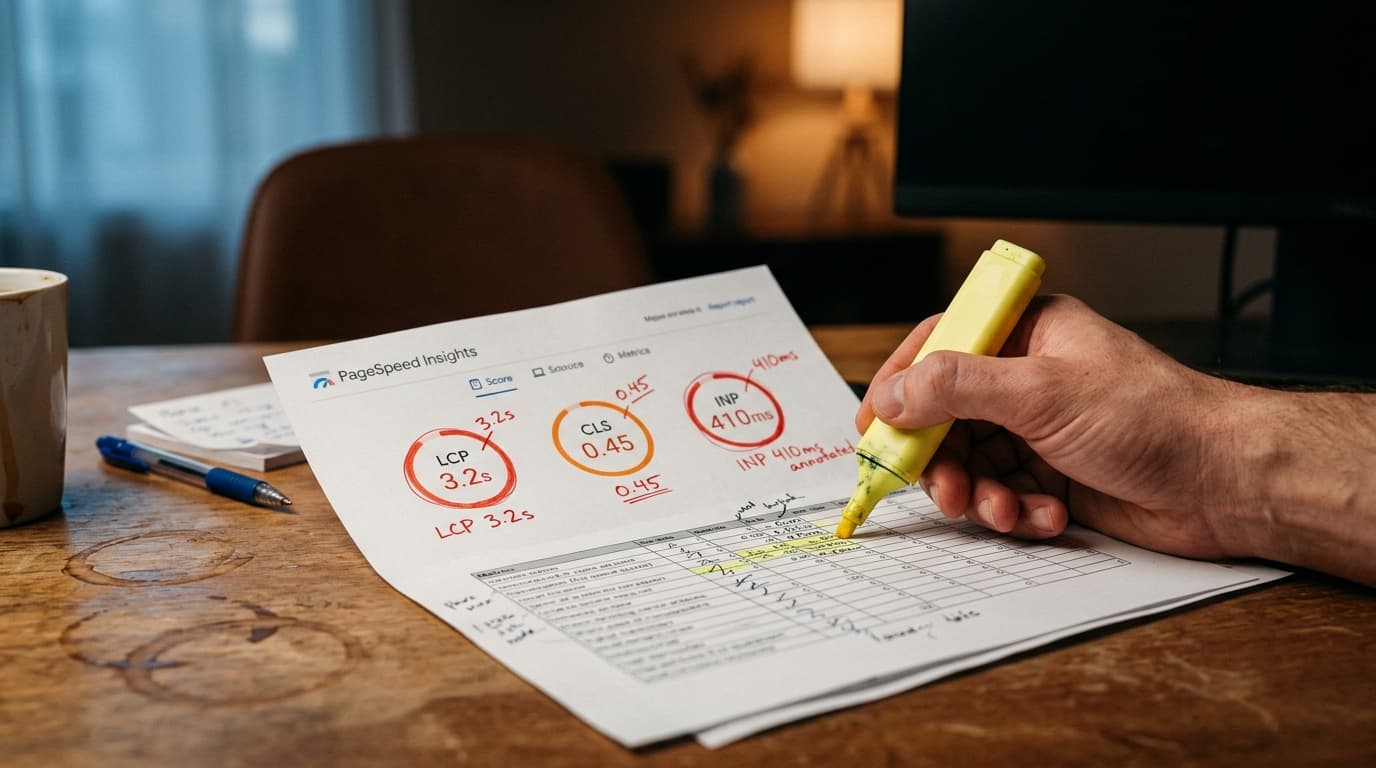
Based on our analysis of the top 1,000 Shopify stores by traffic, the average store fails Google’s Core Web Vitals (CWV) performance standards. The median Largest Contentful Paint (LCP) is 3.4 seconds, well into the "Needs Improvement" category. While most stores pass Interaction to Next Paint (INP), significant issues with Cumulative Layout Shift (CLS) create a frustrating user experience. These are not edge cases; this is the norm.
Our Methodology: How We Tested 1,000 Stores
Vague claims don't help anyone. This data is grounded in a specific, repeatable process. To get these numbers, we compiled a list of the top 1,000 Shopify stores by estimated monthly traffic. We then ran each homepage through Google's PageSpeed Insights API, collecting the "origin summary" data, which reflects real-user performance over the previous 28 days. This methodology avoids one-off testing fluctuations and reflects a more stable, real-world performance profile. We focused on the three Core Web Vitals: LCP, INP, and CLS.
The Core Web Vitals Breakdown: Where Shopify Stores Fail
The pattern is consistent enough to name. Stores struggle with initial load time and visual stability, while interactivity is less of a problem until heavy app usage clogs the main thread.
Largest Contentful Paint (LCP) Is the Most Common Failure
LCP measures how long it takes for the largest image or text block to become visible. Google's threshold for a "Good" experience is under 2.5 seconds. Our findings show that most top stores miss this mark by a wide margin.
- Good (under 2.5s): 28% of stores
- Needs Improvement (2.5s - 4.0s): 45% of stores
- Poor (over 4.0s): 27% of stores
The mistake to avoid: assuming your theme handles image optimization automatically. The most common failure mode for LCP is a massive, uncompressed hero image or carousel slider. The browser has to download this enormous file before it can render the most important content on the page. A compressed WebP image saves seconds; an unoptimized PNG costs sales.
Interaction to Next Paint (INP) Is a Deceptive Pass
INP measures how quickly a site responds to user interactions, like clicking a button or opening a menu. Here, the results look much better on the surface, with a median INP of 180 milliseconds (ms), well within the "Good" range of under 200ms.
- Good (under 200ms): 78% of stores
- Needs Improvement (200ms - 500ms): 19% of stores
- Poor (over 500ms): 3% of stores
But this metric is misleading. While the initial INP is often good, the failure mode is third-party JavaScript from apps. A review widget, a loyalty pop-up, or a tracking script can tie up the browser exactly when a user tries to click "Add to Cart," causing frustrating delays. Your store might pass the baseline INP test but still fail when it actually matters.
Cumulative Layout Shift (CLS) Exposes Lazy Loading and Pop-Up Sins
CLS measures visual stability - how much content jumps around on the page as it loads. A "Good" score is under 0.1. The top Shopify stores are, on average, right on the edge of failure.
- Good (under 0.1): 61% of stores
- Needs Improvement (0.1 - 0.25): 29% of stores
- Poor (over 0.25): 10% of stores
The primary culprit is content that loads without a reserved space. Think of cookie banners that suddenly appear at the top, announcement bars that push the whole page down, or images that lazy-load without defined dimensions. The user goes to tap a button, but the button moves at the last second. This is a direct path to user frustration and lost trust.
Apps, Not Themes, Are the Biggest Speed Killers
Alright. Coffee's ready. Let's talk about the real problem. While a bloated theme can cause issues, the single biggest drag on performance is the accumulation of third-party apps. Each app adds its own JavaScript and CSS files, which means more network requests, more code for the browser to parse, and more potential for scripts to block the main thread.
Merchants often fall for a version of the sunk cost fallacy: they've spent time and money configuring an app, so they are reluctant to remove it even when it provides marginal value and slows down every single page load. The honest tradeoff is clear: removing that "social proof" pop-up might feel like a loss, but the resulting site-wide speed improvement will almost certainly increase your overall conversion rate. You are trading a single feature for the performance of the entire substrate.
Three Fixes That Move the Needle on Shopify Speed
This isn't just about getting a better PageSpeed score. It's about reducing friction for your customers. Here are the three areas that deliver the biggest performance gains.
1. Audit Your Apps Relentlessly
Start by identifying which apps are loading assets on your homepage. Use your browser's DevTools (Network tab) or a waterfall chart from a tool like GTmetrix to see all the scripts being loaded. If you see scripts from an app you uninstalled months ago, it means there's leftover "ghost code" in your theme. Remove it. For active apps, ask the hard question: does this feature's value outweigh its performance cost?
2. Master Image Optimization
This is non-negotiable. Your hero and product images must be properly sized and compressed before you upload them to Shopify. Aim for under 150kb for large banner images and under 100kb for product photos.
- Use the right format: Use WebP for all photographic images. It offers superior compression compared to JPG and PNG.
- Set explicit dimensions: Add `width` and `height` attributes to your `
` tags to prevent layout shift as images load.
- Lazy load correctly: Lazy load images that are below the fold. A lazy-loaded image below the fold improves performance; a lazy-loaded hero image destroys it.
3. Defer, Don't Block
Not every script needs to load immediately. JavaScript for a chat widget or an analytics service is not essential for the initial page view. Work with a developer to add `defer` or `async` attributes to non-critical script tags. This allows the browser to continue rendering the page without waiting for those scripts to download and execute, directly improving your LCP score.
Your Next Step: Get Your Own Benchmark
These benchmarks provide a target, but your starting point is your own data. Go to Google's PageSpeed Insights and run your own domain. The report you get back isn't a grade; it's a diagnostic tool. That report is the starting point for your optimization roadmap. It hands off directly into a prioritized list of tasks for your development team to execute, turning this analysis into action.
Shopify Store Speed FAQs
What is a good PageSpeed score for a Shopify store?
A "good" mobile score is 90-100, but honestly, very few feature-rich Shopify stores achieve this. Instead of chasing a score, focus on passing the Core Web Vitals. Aim for an LCP under 2.5 seconds, an INP under 200ms, and a CLS score below 0.1 based on real-user data (the "origin summary" in PageSpeed Insights).
How do I know which apps are slowing down my store?
Use the Chrome DevTools Network tab to see which domains are loading scripts on your site. If you see files loading from a domain associated with an app, that app is impacting your speed. You can also use Shopify apps like "Shopify Theme Inspector" or "Speedwise" to help diagnose script-by-script impact.
Can changing my Shopify theme make my store faster?
Yes, absolutely. A modern, lightweight theme built for performance (like one from Shopify's own theme store that is labeled for performance) will provide a much better starting point than an older, bloated theme loaded with unnecessary features and libraries. However, even the fastest theme will be slow if you load it up with unoptimized images and dozens of apps.