

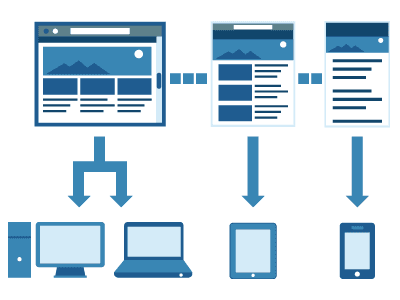
We get regular questions about adding a responsive image carousel to a BigCommerce storefront. Below is a current, honest walkthrough - what a carousel is actually for, when it helps and when it hurts conversion, the realistic implementation options, and the performance and accessibility details that most copy-paste tutorials skip and that quietly cost stores money.
Why responsiveness is non-negotiable
Mobile is where the majority of storefront traffic and a large share of completed orders now happen, and Google indexes the mobile version of your site first - the mobile experience is the experience that ranks. A carousel that looks fine on a 1440px desktop but overflows, mis-sizes, or loads slowly on a phone is not a cosmetic issue; it is actively suppressing sales and rankings. Anything you add to the homepage has to reflow cleanly across screen sizes and must not drag down your Largest Contentful Paint, because the hero region is almost always what LCP measures.
Should you use a carousel at all?
Answer this honestly before you build anything. Years of usability research have consistently found that auto-rotating hero carousels get very low engagement past the first slide, that most users never see slide three, and that rotating banners can actively bury the message you most want seen. A carousel earns its place only when the slides are genuinely equivalent in priority - several distinct seasonal collections, for example - not as a way to avoid the harder work of deciding which single message matters most. If you have one primary offer, a single strong, fast hero banner almost always out-converts a five-slide rotation. Building a carousel because the old theme had one is not a reason.
Implementation options, easiest and safest first
- Built-in theme carousel. Modern Stencil themes ship with a configurable homepage carousel managed under Storefront → Carousel or through the theme's visual customizer. For the large majority of stores this is the correct answer: it is responsive, maintained by the theme author, survives platform updates, and requires zero code. Exhaust this before touching anything else.
- App-based slider. The BigCommerce app marketplace has banner and slider apps that add scheduling, audience targeting, and click analytics without editing theme files. This is the right choice when merchandisers need to manage rotations themselves and want data on which slide actually drives clicks.
- Custom slider via theme files. Only when the first two genuinely cannot do what a specific design requires. This is the legacy approach - powerful, but you now own its maintenance and its risks.
Custom slider walkthrough (Stencil)
The historical Blueprint-era mod loaded the SlidesJS jQuery plugin through HTMLHead.html and a panel region. On a current Stencil theme the equivalent, modernized, is:
- Choose a small, modern, dependency-free slider library (Glide.js or Splide, for example) instead of an old jQuery plugin - less weight, no jQuery dependency, actively maintained.
- Add the library's assets to the theme under
assets/via Storefront → My Themes → Edit Theme Files, and reference them through the theme's asset pipeline rather than hard-coding a shop-path URL. - Place the carousel markup - a container holding your
<img>slides - into the specific template region you want it in (commonly a home component undertemplates/components/home/or a custom region), not a global default file, so it renders only where intended. - Initialize the library in the theme's JavaScript bundle on DOM ready, scoped to the carousel's selector so it does not collide with other scripts.
- Replace the placeholder images with your own, exported at the exact dimensions the slider displays so you are not shipping a 3000px image to a 375px phone.
Performance and accessibility checklist
- Export slide images at display size, serve modern formats (WebP or AVIF), and compress them. An unoptimized hero carousel is the single most common cause of a slow first paint on an ecommerce homepage.
- Give every slide image descriptive
alttext. "#" is not alt text - it fails accessibility audits and wastes an image-search opportunity. - Eager-load the first slide so it is not delayed; lazy-load the rest so they do not block the initial render.
- Provide visible, keyboard-operable controls and pause-on-hover and pause-on-focus. Never trap a screen-reader or keyboard user inside an auto-advancing loop.
- Set explicit width and height (or an aspect ratio) on slide images to reserve layout space and prevent the Cumulative Layout Shift that tanks Core Web Vitals.
- Respect the user's reduced-motion preference - disable auto-advance when
prefers-reduced-motionis set.
What to put on the slides (and how to measure them)
The technical build is the easy half; deciding what each slide says is where most carousels fail. Treat every slide as an ad with one job. A slide that tries to communicate three offers communicates none. Good slide candidates, in rough priority order, are: a current promotion with a clear, time-bound offer; a flagship or new collection with a single strong image; a trust or differentiator message (free shipping threshold, returns policy, a credential that actually matters in your category); and seasonal merchandising. Each slide needs one headline, one supporting line at most, and one button with verb-first text ("Shop the sale," not "Click here").
Once it is live, instrument it. Add click tracking to each slide's call to action so you can see which slide earns clicks and which is dead weight, and watch the homepage's bounce and scroll behavior after launch. The common, evidence-based finding is that the first slide earns the overwhelming majority of clicks and later slides earn almost none - which is itself the argument for fewer slides or a single hero. Let the data retire slides that do not perform instead of leaving a five-slide rotation running on faith. A carousel you never measure is just decoration you are paying for in load time.
Frequently asked questions
Does a carousel hurt SEO? Not inherently. A slow or layout-shifting carousel hurts Core Web Vitals, which are a ranking signal, and a carousel that buries your key content hurts engagement. Optimized images, reserved space, and restraint keep it safe.
How many slides should I use? Three to five at most, and only if the slides are genuinely equal in priority. Fewer, sharper slides almost always out-perform a long rotation.
Will a custom slider survive a theme update? Direct theme-file edits can be overwritten when you update or re-download the theme. Document every change, keep it in version control, or use the built-in or app route to avoid silently losing it.
Carousel or static hero for a sale? A single static hero for one campaign almost always converts better and loads faster than rotating that campaign through a slider.
If you would rather not own and maintain custom theme code, our responsive design and BigCommerce development teams build storefronts that look right and load fast on every device - with a carousel only where it measurably helps conversion, not because the old site had one.