

One of the many benefits of using BigCommerce is how customizable the storefront is without touching code, and the centerpiece of that is the theme editor (also called Page Builder / Theme Editor in current BigCommerce).
The theme editor lets BigCommerce users modify the look and feel of a theme - fonts, colors, layout, and product display - visually, with a live preview, and without writing Stencil or HTML. This guide walks through the controls that matter and the workflow that keeps you out of trouble.

Work on a Copy, Not the Live Theme
Before changing anything: in Storefront > My Themes, duplicate your active theme and edit the copy. The theme editor's Publish button applies changes to your live store immediately, so editing a copy gives you a safe sandbox and an instant rollback if a change looks wrong on the storefront. This one habit prevents the most common BigCommerce theme mishap - a half-finished edit going live during business hours.
Choosing a Theme Style – Click the Styles tab to see the pre-built style variations the theme ships with (different color/typography presets). Select one and it becomes the baseline you then fine-tune. Each theme also exposes additional controls beyond the presets, so the style is a starting point, not a ceiling.
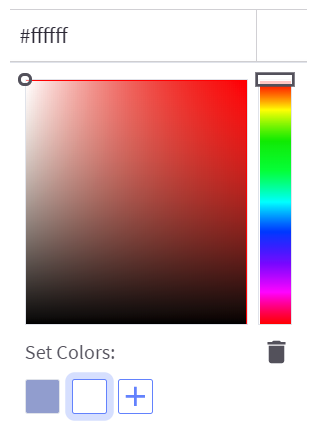
Customizing Colors – Colors can be set across the site using the color picker or by entering an exact hex value next to each menu item, and the preview updates instantly. If a color repeats throughout your theme, save it as a swatch with the ‘+’ below the picker so the whole palette stays consistent and is one click to reuse. Use your brand's exact hex values here, and check contrast - text on backgrounds should meet WCAG AA (a 4.5:1 ratio for normal text) so the store is readable and accessible.
Customizing Fonts – The Typography and Icons menu controls font family, size, and color for body text, headings, and icons, each with its own dropdown. Restraint pays off here: two typefaces at most, a clear size hierarchy, and a body size of at least 16px so the store reads well on phones, where most of your traffic is. Heavy custom web fonts also slow the page, so weigh brand fidelity against load time.
Products – The Products menu changes how product cards and listings render. "Product cards" are how items appear on category pages - you can adjust the number of related products, products per page, image sizing, and card colors. These choices have real commercial impact: image aspect ratio affects how professional the grid looks, and products-per-page affects both perceived choice and page speed, so test rather than guess.
Preview Every Breakpoint Before You Publish
The editor previews desktop, tablet, and mobile from the device toggle. Always check all three - a layout that looks balanced on desktop frequently breaks on mobile, where the majority of eCommerce traffic now is. When you're satisfied you can Publish (live immediately), Save without publishing, discard changes, or reset the theme to its default. Because you're working on a duplicated theme, even Publish is recoverable: just re-publish the previous theme copy.
Know the Editor's Limits
The theme editor is intentionally bounded. It handles styling, layout regions, and merchandising settings, but structural changes - custom templates, new section types, Stencil markup, or bespoke functionality - require editing the theme files or a developer. A good rule: use the editor for everything it exposes, and only drop to code when a genuine business requirement can't be met visually. That keeps your store upgrade-safe and easy to maintain.
Frequently Asked Questions
Will publishing overwrite my work if I switch themes? Your edits are saved to the specific theme copy you were editing. Switching active themes doesn't delete them; you can return to that copy.
Can the theme editor hurt SEO? Indirectly, yes - heavy fonts/images and poor contrast slow the site and hurt usability. Keep performance and accessibility in mind as you style.
When do I need a developer? When you need new templates, custom sections, or functionality the menus don't expose.
A Sensible Customization Workflow
Put the pieces together into a repeatable process so theme changes never become emergencies. Duplicate the live theme and work on the copy. Make one category of change at a time - colors, then typography, then product display - rather than everything at once, so if something looks wrong you know exactly what caused it. Preview desktop, tablet, and mobile after each change set. Have a second person look at the storefront copy before you publish, because the person who made the change is the worst judge of whether it reads clearly. Publish during a low-traffic window, then immediately load the live store on a real phone, not just the editor preview, and click through a full path: home, category, product, add to cart, checkout. Keep a one-line changelog of what you changed and when, so a future regression is easy to trace. None of this is technical, but following it consistently is the difference between a store that evolves smoothly and one where every visual tweak risks a customer-facing break.
One more strategic point: resist the urge to over-customize. Every deviation from the theme's defaults is something you have to re-check when the theme is updated and something that can drift out of brand consistency over time. Change what genuinely serves the brand and the shopper; leave the rest at sensible defaults. A restrained, consistent store almost always converts better than a heavily tweaked one, and it's far cheaper to maintain.
If you want more help getting the most out of BigCommerce- or a fully custom theme beyond what the editor allows - turn to 1Digital®. We're a BigCommerce partner with a dedicated BigCommerce design and development team. Contact us today.