

Welcome to the final installment of our three-part series on BigCommerce's built-in search functionality. In Part 1 we got familiar with the search settings, fields, and terminology. In Part 2 we covered enhancing product descriptions and details to make the store more searchable. Here in Part 3 we close the loop with the highest-leverage, most-neglected work: keywords - and specifically, how to find and fix searches that are failing your customers right now.
Why this part matters most: a customer who uses your search bar has high purchase intent - they're telling you exactly what they want. A failed search is a near-certain lost sale that you can see and fix. The data to do it is already in your BigCommerce admin; almost nobody looks at it.
The Search Keywords Field
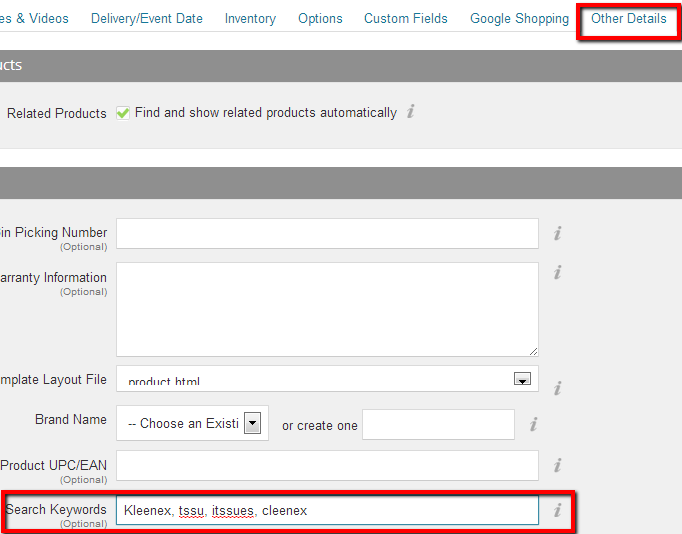
In the backend, edit a product and go to the Other Details section. The Search Keywords field is where you add the terms native search should match beyond the product title: common misspellings, regional or colloquial names, abbreviations, synonyms, and specific identifiers like serial, model, or part numbers. This single field is the difference between a customer's word finding the product and returning nothing.
Keywords With No Results - Your Highest-ROI Report
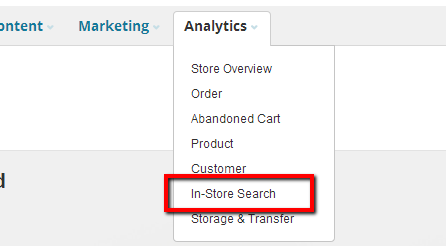
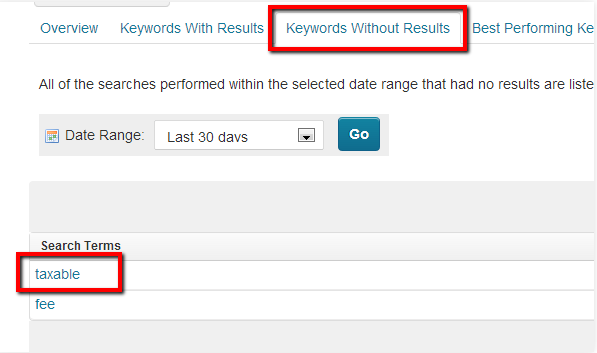
The Analytics section, under In-Store Search, has a Keywords Without Results report: the actual terms customers typed that returned nothing. Every line is a customer who told you what they wanted and got a dead end. Work this list on a schedule. For each term decide which of three things it is: a wording gap (you stock it but call it something else - add the customer's term to that product's Search Keywords), a true inventory gap (you don't carry it - a signal for merchandising or a "notify me" capture), or a typo pattern (add the common misspelling). Reviewing this report monthly is one of the cheapest, highest-return routines a BigCommerce store has, because it converts known, intent-rich failures directly into recoverable sales.
Poorly Performing Keywords - Searches That Return Too Much
A poorly performing keyword returns results, but customers don't click any of them. This usually happens when many products share a generic keyword, so the relevant item is buried. Suppose you sell laptops and laptop accessories. A customer searching "laptop lap desk" gets a long list of laptops instead of the lap desk they want. The fix is specificity: on the lap-desk product, set the Search Keywords to the exact phrase "laptop lap desk," not just "laptop" or "lap desk," so the right product surfaces first instead of drowning in the broad-term results.
The general principle behind both problems: native search matches the words you give it, so the work is to make every product's keywords specific enough to win its own intent and broad enough to catch the language real customers use. Those two pressures are in tension, which is exactly why the analytics reports - not guesswork - should drive the edits.
Turn This Into a Recurring Routine
One-time keyword cleanup decays as the catalog changes. Make it a standing process: monthly, work the Keywords-Without-Results report and review which high-traffic searches aren't converting; whenever you bulk-import products, immediately run a few real customer queries against the new items; and keep a simple internal synonym list (the recurring misspellings and colloquialisms in your category) so new products launch with good Search Keywords instead of needing a later rescue. Search quality maintained on a schedule keeps compounding; search set up once silently degrades.
Frequently Asked Questions
Where do I see failed searches in BigCommerce? Analytics > In-Store Search > Keywords Without Results, plus the broader in-store search data for low-click terms.
What goes in the Search Keywords field? Misspellings, synonyms, colloquial and regional names, abbreviations, and identifiers like model or part numbers - anything a real customer might type that isn't already in the title.
When should I move to a third-party search app? When you genuinely need capabilities native search lacks at your scale (advanced merchandising rules, AI relevance, large-catalog faceting) - after you've exhausted the native tooling above, not before.
Why Search Tuning Outperforms Most Other Optimizations
It's worth stepping back to see why this work is so high-leverage. Most conversion optimization tries to increase intent - better copy, social proof, urgency. Search tuning works on visitors who already have maximum intent: they told you exactly what they want by typing it. A failed or buried search isn't a soft "maybe later," it's a hot lead walking out the door with money in hand. That's why fixing one recurring zero-result term often returns more than a month of homepage A/B testing: you're not persuading anyone, you're removing a wall between a ready buyer and the product they already decided they want. Framed that way, the monthly fifteen minutes in the In-Store Search reports is arguably the single best-return recurring task in the BigCommerce admin.
Tie Search Data Back to Merchandising and Inventory
The reports in this article aren't only a search-tuning tool - they're a customer-demand signal the rest of the business should use. Repeated zero-result searches for things you don't stock are a free, unbiased product-request list straight from people trying to give you money; route it to whoever owns purchasing. High-volume successful searches reveal what to feature on category pages and in campaigns. Seasonal spikes in certain queries can inform inventory planning. The teams that treat in-store search analytics as merchandising and demand intelligence, not just a search-engineering chore, extract several times the value from the same reports.
BigCommerce's out-of-the-box search is genuinely capable once you work it deliberately. If you need functionality beyond it, our BigCommerce developers and BigCommerce SEO team can integrate and tune advanced search for your store.