


Before you pay for a third-party search app for your BigCommerce store, it's worth slowing down to look closely at the search functionality BigCommerce ships out of the box. A wall of dropdown menus can look tedious, but configuring them correctly often saves real time and money - and on-site search is not a minor feature: shoppers who use search convert at a much higher rate than those who only browse, because a search is a direct statement of intent. Misconfigured search quietly suppresses your highest-intent traffic.
This is Part 1 of a three-part series on getting the most from BigCommerce's standard search. Part 1 covers the settings; Part 2 covers product data; Part 3 covers keyword tuning using your search analytics.
Reach the settings via the Search tab, then Setup & Tools > Customize your store > Store Settings. You'll see four dropdowns and a text field. These control how customers experience search on the storefront - not how you and staff search the backend, which is a separate, internal concern.
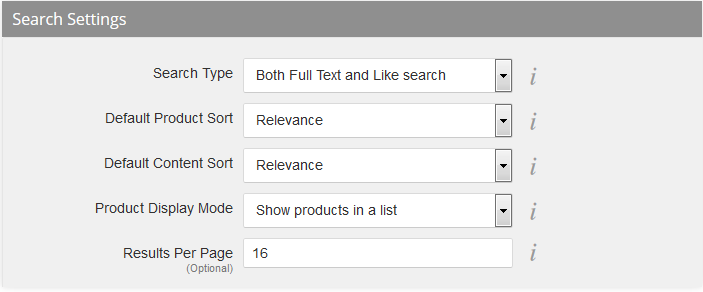
Search Type - Start Here, It Matters Most
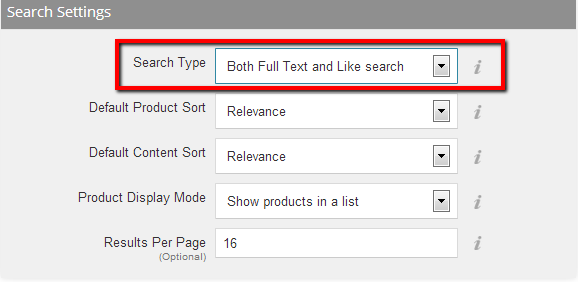
The Search Type menu controls how precisely a customer's query must match. Full Text Search is fast and accurate but expects the shopper to use fairly exact terms. Like Search is more forgiving and better for customers browsing a category rather than hunting one exact item. For most stores the right choice is Both Full Text and Like Search, which gives customers the widest flexibility - it tolerates loose, partial, and exploratory queries while still rewarding precise ones. This is the single most consequential setting on the page: too strict and casual searchers get nothing; too loose and precise searchers get noise. "Both" is the sensible default for general retail, and you'll refine the edges later using the analytics in Part 3.
Default Product Sort - Think Like the Customer
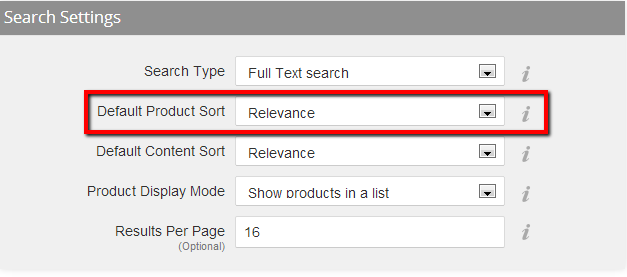
The Default Product Sort menu controls how results are ordered: alphabetical, featured, price, and others. It's tempting to default to featured or highest-price products to push margin, but that's optimizing for you, not the shopper. Someone who just typed a query wants the most relevant match, not your bestseller. Putting irrelevant-but-promoted items first is a leading cause of "results returned but nothing clicked" - the poorly-performing-keyword problem we dissect in Part 3. Use the Relevance sort so search answers the customer's actual question; merchandise margin through category pages and recommendations, not by hijacking search order.
Content Sort and Product Display Mode - The Finishing Touches
The last two menus matter less but are still worth setting deliberately. Default Content Sort orders non-product results (blog posts, news, announcements) - alphabetical or reverse-alphabetical; pick whichever makes your informational content easiest to scan. Product Display Mode chooses grid or list layout for results. This isn't purely cosmetic: a grid favors visual, image-led categories (apparel, décor) where shoppers compare by look, while a list suits spec-driven products (parts, electronics) where attributes matter more than imagery. Match the mode to how your customers actually compare items.
A Sensible Configuration to Start From
If you want a defensible baseline before you have data: Search Type = Both Full Text and Like Search; Default Product Sort = Relevance; Content Sort = whatever scans best for your content; Display Mode = grid for visual catalogs, list for spec-heavy ones. Save, then immediately test it: run ten real customer-style queries - including a misspelling, a broad term, and a very specific one - through your own storefront search and see whether the results make sense. This baseline plus that ten-query sanity check catches the majority of search misconfigurations before a customer does.
Frequently Asked Questions
Which Search Type should I use? "Both Full Text and Like Search" for most stores - it serves precise and exploratory shoppers alike.
Should I sort search results by featured or price? No - use Relevance. Promoting bestsellers in search results is a top cause of searches that return items but get no clicks.
Do these settings affect SEO? Indirectly: better on-site search means higher conversion and engagement from intent-rich visitors, which supports overall store performance.
Why the Settings Page Deserves More Attention Than It Gets
It's easy to skim this screen once at setup and never return - which is exactly why misconfigured search is so common and so quietly costly. Unlike a broken page that generates complaints, bad search settings fail invisibly: the customer types, gets nothing useful, and silently leaves for a competitor without ever telling you. There's no error log for "the Search Type was too strict" or "Relevance sort was off." The only evidence is softer conversion among your highest-intent visitors and, later, the failed-query reports in Part 3. Getting these four menus right is therefore a rare combination - low effort, no ongoing cost, and a direct effect on the visitors most likely to buy. That asymmetry is the whole argument for treating this unglamorous settings page as a priority rather than a one-time afterthought.
Native Search vs. a Third-Party App - Decide Deliberately
Because this series opens by urging you not to rush to a paid search app, it's worth stating the honest decision rule. Configure and work the native tooling first - settings (Part 1), product data (Part 2), and analytics-driven keyword tuning (Part 3). For a large share of stores that's genuinely sufficient. Move to a third-party search app only when you hit a need native search structurally can't meet at your scale: advanced merchandising rules, AI-driven relevance and synonyms, large-catalog faceting, or personalization. Adopting a paid app before exhausting the native tooling usually just adds cost and complexity on top of an unconfigured foundation - the app inherits the same poor product data and ends up no better. Earn the upgrade with the work in this series first; then, if you still have a clear capability gap, the case for an app is real and defensible.
In Part 2 we move from settings to product data - the product details and descriptions that determine what these settings actually have to work with. If you'd like expert help, our BigCommerce SEO team and developers tune store search end to end.