


Part 3: Setting up a Volusion Store
Previously, on How to Succeed in eCommerce Without Really Trying: Joe does a sci fi podcast with his friends, and they are ready to start selling merch online. He’s been put in charge of creating their online store. There’s just one problem. When it comes to setting up a web store, he’s about as professional as a pair of Birkenstocks at a board meeting. So he’s setting up web stores in each of the three big names in eCommerce web hosting – Shopify, Big Commerce, and Volusion – to see which makes the most sense to the eCommerce uninitiated.
To check out part one of the series, Joe’s rundown on Shopify, click here.
To see how Joe handled Bigcommerce, check out part two of the series here.
I had vanquished Shopify. I had wrestled Bigcommerce to the ground. I was feeling pretty proud of myself when I stepped up to my next challenger, Volusion. As the great Winston Zeddemore once said, I had the tools, and I had the talent. So I planted my feet and gritted my teeth for one more go-round. This is setting up a Volusion store.
Before we get started, let me give you a heads up about the Volusion dashboard. For some inscrutable reason, Volusion orients it’s dashboard menu horizontally across the top of the page, instead of vertically down the left side, like Shopify and Bigcommerce do. Also unlike Shopify and Bigcommerce, the front page of Volusion’s dashboard is where your store’s analytics tools are displayed. These are informational readouts about which products and categories are attracting the most attention, as well as how many sales and orders are being made. This will probably become a pretty nice feature to have prominently presented when you’re actively running the business, but during the trial these graphs amount to little more than pretty colors. It’s not a big deal. It’s just different. On the other end of the spectrum, there is a set of welcome steps at the top of the Volusion dashboard page. These are nice for an eCommerce newbie, because they explain some of the essential steps you’ll have to preform to get your Volusion store up and running. Speaking of which, that’s supposed to be my job. So let’s get going.
(click photo to enlarge)
Adding Products
To get to your products page:
Select inventory from your dashboard menu
Choose products
Click the add product button at the top of the page
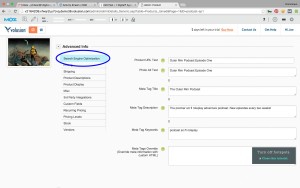
You and I both know the basics by now: fill out the product name, the description, the price, and drag the product image into the box. But Volusion does add some wrinkles to the products page that we should go through. One of Volusion’s required fields is code. This is meant to be a unique combination of letters and numbers you’ll use to identify your product in the store’s back end. If you don’t have a product code in mind quite yet, don’t worry. You can fill this out now, and change it later. At the bottom of the page, Volusion has a section for advanced info. This looks like a lot, I know, but you don’t have to populate every box to move on. Go though this section and fill out the boxes you feel comfortable with. You can always come back and add the rest later. One section I would recommend working on is called search engine optimization. By filling in these boxes, using keywords relevant to your product, you’ll make it easier for search engines to find that product once the store launches. Now that we’ve added some products, let’s work on…
Adding a Theme
I use the word theme for consistency’s sake, but in Volusion they’re really called templates. To see which templates you have to choose from:
Select the design menu from the dashboard menu
Choose template
Volusion has a lot of templates available, 75 to be exact. 16 of them are free, the rest vary wildly in price, from $50 on the low end, all the way up to $895. Volusion has a nice tool for sorting their templates. You can isolate templates by color, price, category, or industry. You can also go outside the Volusion store for a custom selection. Once you choose your template, move on to customizing your logo. Otherwise, your template will just say ‘company name’ at the top of the page:
Go back to the design menu
Select logos
The logos page gives you two options, text and graphic. Under the text option you can write the name of your store in the text box and have it appear at the top of your page. However, if your business already has a logo designed:
Choose graphic
Drag and drop your logo’s image into the box
Our template is up and running, but it’s looking a little bare. Let’s rectify that by…
Adding Copy
Like in Bigcommerce, you begin the Volusion trial with many of your site’s pages auto populated. If you use the icon located on the top left of your screen to toggle between your store’s front end and back end, you’ll find one of the coolest features the Volusion platform has to offer. You can edit a lot of your web store’s content right there in the front end! While in your store’s front end:
Mouse over the content you’d like to edit
Click edit
Type your copy
If you run into a block of text that you can’t edit from the front end, simply return to the back end:
Go back to the design menu
Select site content
Click the orange number, next to the page’s title
Edit the content in the article body section
I don’t know about you, but I could have a lot of fun spending hours wandering around the front end of the store, personalizing every little piece of text, but let’s keep our eyes on the prize. Let’s push forward, and set up:
(click photo to enlarge)
Social Media Integration
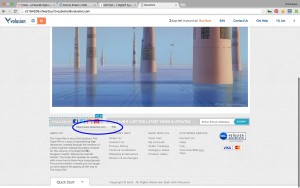
You can also set up your store’s social media buttons through the front end. The Volusion template links those social media buttons to Volusion’s social media pages. To redo those buttons so they link to your own pages, locate the social media buttons on your homepage:
Mouse over the area, and click edit
Click the icon you’d like to link to an account
Click edit again, in the box that appears
Remove the link to Volusion’s page, and copy paste your own link in
Volusion also allows you to manage posts to your social media right from your dashboard. If you’re already signed into your social media accounts:
Select marketing from the dashboard menu
Choose social
In the share with section, select the accounts you’d like to post to
Write your post in the create message box
Another cool feature in Volusion is the option to add a Facebook like button, and a Facebook share button to your product pages. These will allow your customers to spread the word about the products they like. To do this:
Select products, from the inventory menu
Open the settings menu, at the top of the products page
Choose all product settings
Check the boxes next to enable Facebook like button, and enable Facebook send button
Volusion has a couple other social media tools available as well, including integration with a Facebook store, but for brevity’s sake let’s move on to…
Setting up Payments
It’s been pretty smooth sailing so far, but the seas are about to get a little rough. Setting up payments in Volusion is going to involve some steps we haven’t seen before in this series. But don’t lose your sea legs; I’m here to take you through it. To accept payments through a Volusion web store you’ll need three components: an SSL certificate, a payment gateway, and a merchant account. The SSL certificate makes sure your store can process payments securely, by protecting the credit card and personal information that users type into their browsers before it’s sent over the Internet. To get an SSL certificate for your store:
Go to the Volusion homepage
Open the services menu
Click SSL certificates
A standard Volusion Pro SSL certificate will set you up for one year at $89. It may take as much as two weeks to process and install, so don’t sleep when it comes to this part. Before your SSL certificate can be processed, you’ll need to own your domain name. If you don’t have one yet, we’ll cover getting one in the last section. Our next step involves the payment gateway and the merchant account. We’ll get both of these through Volusion payments. To get your Volusion payments account:
Go back to Volusion’s homepage
Open the services menu
Choose credit card processing
Click the green button that says apply now
Fill out the form
You can also set up a PayPal express account to accept payments through your Volusion web store. Once all three of these components are ready, you can integrate your payment gateway into your store by:
Open the settings menu in the dashboard
Select payment
Fill out the information under gateway credentials
Now that we’re able to take payments there’s not much stopping us from taking orders. But we wouldn’t want to get paid for a product we can’t deliver, so let’s work on…
Setting Up Shipping
When setting up a Volusion store, you will have to complete two parts of the shipping process: shipping locations and shipping rates. To get to the shipping page:
Open the settings menu in the dashboard
Select shipping
Once on that page, fill out the ship from location form with the address of your business. You can specify the places that your business will ship to by filling out the include and exclude fields, under ship to location. Once your locations are filled out, you can set your shipping rates. Volusion offers a shipping calculator that will determine a shipping rate based of your product’s size and dimensions. They call these live rates. However, Volusion recommends factoring shipping costs into the price of your products, and offering free shipping on all items. A high shipping cost has been shown to cause customers to abandon carts in the checkout phase. Offering free shipping can help your web store get a lot more conversions. To set up free shipping:
Go to the free shipping section of the shipping page
Click the add rates button
Name your free shipping option in the label box
Check the box next to active
You can set up live rates, and flat rates in the sections under free shipping. Once you choose your shipping rates for your shipping locations, we can take the final step and work on…
(click photo to enlarge)
Launching the Store
The first thing to take care of, in order to make sure the store is ready for launch, is registering a domain name. Volusion has services that allow you to migrate an already existing domain name over to your Volusion store. However, if you need a brand new domain name for your brand new store, you can purchase one through Volusion:
Go to the Volusion homepage
Open the services menu at the top of the page
Select domain names, under business tools
Search for your desired domain name by typing it in the box, and clicking the green search button
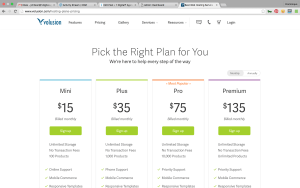
When you settle on a domain name you like, you can buy it through Volusion at $11.99 for the first year. If your domain name is purchased, and your SSL certificate and merchant account are being processed, you can start to look into the pricing plans that Volusion offers. Volusion offers four plans to choose from. They also give you the option to save a few dollars per month by choosing to be billed annually, instead of monthly. As with the other hosting services, the amount of functionality you want to pay for will factor heavily into this decision. I will point out, however, that if your budget is of the shoestring variety, Volusion’s Mini plan is only a dollar more per month than Shopify’s Starter plan, and it includes a lot more functionality. Now that the basics are set up, your Volusion store is ready for the big stage. Though, with all the tricks in Volusion’s bag, I imagine you’ll still be tweaking and tinkering long after launch.
Overall Impressions on Volusion
Honestly, I’m glad I tackled Volusion last. If I’d had no experience with eCommerce at all, I can imagine being scared off by some of the more technical aspects of setting up a Volusion store. Volusion has you work on of a lot of the intimidating, behind the scenes stuff, like SSL certificates, that Shopify and Bigcommerce take care of for you. If you make it past the scary stuff, Volusion has a lot of great tools and features that you can make use of. The more time you put into learning how to use Volusion, the more your final product will benefit. My sense of Volusion is that it’s a great platform for building a web store, and has been for so long, that it’s resisted some of the practical changes that make Shopify and Bigcommerce more accessible to the eCommerce amateur.
So, that’s my experience with Volusion. Keep your eyes peeled for my last article in this series, when I put all three platforms head to head, and give my final judgments on eCommerce hosting platforms.
If you could use some help customizing your Volusion store, designing a template, or developing some unique features, don’t hesitate to reach out to us.